Tutorials
How to Make a 24/7 Music Live Stream on YouTube — Step-by-Step Guide 2026
Complete tutorial: how to set up a 24/7 music live stream on YouTube using Tunio. No hardware, no DJs — just AI-generated music, virtual hosts and continuous broadcast.
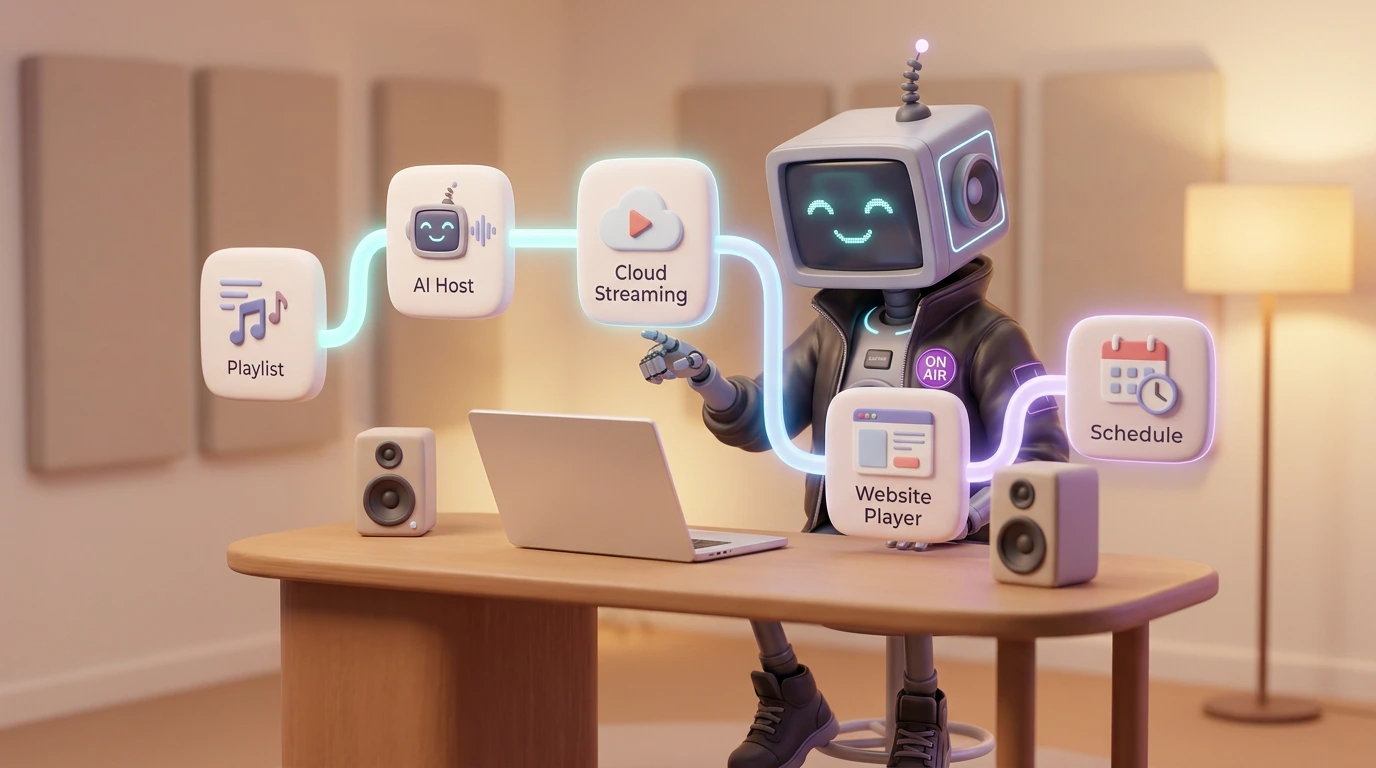
How to Make a 24/7 Music Live Stream on YouTube
A 24/7 music live stream on YouTube is one of the most efficient ways to build a music brand in 2026. Once it is set up, it runs without you: viewers drop in from anywhere in the world, subscribe to your channel, drop Super Chats, and the algorithm keeps surfacing your stream as a "lo-fi study", "deep focus", "jazz café" or "ambient sleep" companion. The tricky part used to be the setup — encoders, copyright-safe music, a stable source. With Tunio, that setup collapses into about twenty minutes.
This guide walks through every step, from picking a sound to monetizing the channel — using Tunio as the AI radio station that powers the stream end-to-end.
TL;DR: Create a Tunio AI radio station, point its RTMP output at a YouTube Live "24/7 stream" event, and you have a continuous music broadcast that survives reboots, rotates music automatically and never gets a copyright strike.
Why creators run 24/7 music streams
A continuous live music stream gives you three compounding advantages that a regular video does not.
Always-on discovery. YouTube's recommendation system favors live content that has been running for hours or days. Once your stream crosses a few hundred concurrent viewers, the algorithm starts pushing it into "Up next" and home-page feeds at all hours.
Passive income. A healthy lo-fi or jazz stream earns from three sources at once: pre-roll/banner ad revenue (CPM is low but constant for 24h × 30d), Super Chats from viewers who want their name on screen, and channel Memberships. Channels with 1k–5k concurrent listeners typically clear $500–$5,000 a month with zero ongoing production work.
Community and brand. A 24/7 stream becomes a "place" — a virtual café where the same people keep returning. They chat, they share it on Discord, they tell friends. For a music brand, label, or business that wants always-on audio presence, no other format compares.
What you need
Before you start, line up four things:
- A YouTube channel in good standing — no active strikes, 2-step verification on, and the live-streaming feature enabled. Enabling live streaming the first time takes 24 hours, so do this the day before.
- A stable music source that never repeats and never triggers Content ID. This is where most creators fail: Spotify, Apple Music and personal playlists will eventually trigger copyright strikes that take your stream offline.
- An RTMP encoder — or, better, a service that pushes RTMP for you. Tunio acts as both the music source and the RTMP push, so you skip OBS entirely.
- A thumbnail and stream title that match what people search for on YouTube ("lo-fi beats to study", "24/7 jazz café radio", "deep focus electronic music"). Use a 1920×1080 PNG with large, readable text.
You do not need a microphone, a webcam, a powerful PC, or technical streaming knowledge. The whole stack runs in Tunio's cloud.
Step 1 — Prepare your music source with Tunio
Open cp.tunio.ai and create a free account. From the dashboard, click New stream and pick a starting point.
- Genre. "Lo-fi hip hop", "ambient", "jazz café", "deep focus electronic", "synthwave" and "instrumental beats" are the highest-converting categories on YouTube in 2026. You can also describe your sound in a prompt: "slow lo-fi beats with vinyl crackle, late-night vibe, 70–85 BPM".
- AI hosts (optional). For pure music streams, leave hosts off. For "café radio" or "morning show" formats, add a virtual host with weather, time checks and song dedications. Pick a voice from the library and a language — Tunio supports 20+ languages.
- Schedule. Most successful 24/7 streams run a soft daypart cycle: chill morning, slightly more energetic midday, deeper evening, and ambient overnight. Set this once in the Tunio schedule editor and the rotation follows your audience's day, every day.
- Jingles and station IDs. Use Tunio's built-in AI jingle generator to create a 6-second station ID with your channel name. Schedule it every 20–30 minutes — it's what turns a playlist into a station.
When you press Go live in Tunio, your station is now broadcasting on a public Tunio URL, looping forever. That's your source.
Step 2 — Set up YouTube Live as a 24/7 stream
In YouTube Studio:
- Click Create → Go live. If this is your first time, YouTube will ask you to enable streaming and wait 24 hours.
- Choose the Streaming software option (not Webcam).
- In the Edit stream dialog, set:
- Title: something searchable, e.g. "lofi hip hop radio — beats to study and relax to 📚".
- Category: Music.
- Visibility: Public.
- Latency: Normal latency (best stability for 24/7).
- DVR: Off (so the buffer doesn't grow forever).
- Stream type: 24/7 continuous (when prompted).
- Save the event. YouTube will show you a Stream key and Stream URL — copy both.
For a deeper dive into picking a sound that performs well on YouTube, our earlier guide Craft your YouTube stream walks through the genre and format choices in more detail.
Step 3 — Connect Tunio to YouTube via RTMP
Back in Tunio, open your stream settings and go to Restream / Outputs. Add a new RTMP destination:
- RTMP URL: paste YouTube's stream URL (usually
rtmp://a.rtmp.youtube.com/live2). - Stream key: paste YouTube's key.
- Bitrate: 128–192 kbps audio for music streams. Video bitrate stays low because you're sending a static visual.
- Visual: upload a 1920×1080 still image or short looping video. Many top streams use a single animated illustration that loops every 60 seconds — that's plenty for YouTube.
Click Start restream. Within 30–60 seconds, YouTube Studio's preview will show your stream coming in. Hit Go live in YouTube and you're broadcasting 24/7.
Because Tunio handles the RTMP push from its cloud, you can close your laptop and walk away — the stream keeps running.
Step 4 — Monetization strategy
Once your stream is live, layer monetization in this order:
- Enable monetization in YouTube Studio → Earn. You'll need to be in the YouTube Partner Program (1,000 subscribers + 4,000 watch hours, or 500 subs + 3 million Shorts views — thresholds may evolve). For 24/7 music streams the watch-hour requirement comes very fast.
- Turn on Super Chats and Super Stickers. These are the highest-ROI feature for music streams — viewers pay $1–$50 to pin their message on the chat. Pair it with a station-ID jingle that says "thanks for the Super Chat, [name]!" generated automatically by Tunio's AI host.
- Add channel Memberships with member-only emoji and a member-only chat. $4.99/month adds up fast on a stream with thousands of regulars.
- Cross-promote to a second stream or a music release page. A "Now playing → full track on Spotify" overlay converts well for label-owned channels.
Step 5 — Monitor and iterate
Check YouTube Studio's analytics every 2–3 days for the first month and look at:
- Concurrent viewers by hour of day. This tells you when to schedule your most energetic music (Tunio's daypart editor lets you adjust in seconds).
- Average view duration. Anything over 15 minutes is excellent for a 24/7 stream. Under 5 minutes means your music is monotonous — diversify the rotation in Tunio.
- Traffic sources. If most traffic comes from search, optimize your title and tags more. If it comes from "Suggested", your thumbnail is the lever.
- Chat activity. Active chat compounds Super Chat revenue. Add a chat-aware AI host segment from Tunio that occasionally shouts out new viewers.
Common pitfalls
Copyright strikes. This is the #1 reason 24/7 streams die. Using personal Spotify, ripped YouTube tracks or "free" SoundCloud playlists will eventually catch a Content ID match. Tunio's catalog is licensed end-to-end for streaming — including YouTube monetization — so this problem disappears entirely.
Audio levels. Music streams sometimes ship at -20 dBFS while the YouTube algorithm normalizes to about -14 LUFS. Use Tunio's loudness target setting (set to -14 LUFS integrated) so your stream is at parity with regular music videos.
Latency and stalls. Pick "Normal latency" in YouTube, not "Low" or "Ultra-low". Low-latency modes are designed for gaming streams and drop frames more aggressively on long sessions.
Thumbnail neglect. A great-sounding stream with a 90s clipart thumbnail will not grow. Spend an hour in Figma or hire a $20 cover artist.
How Tunio simplifies all of this
Setting up a 24/7 YouTube music stream the traditional way means: a dedicated machine running OBS, a music library you've manually cleared, a scheduling script, a backup encoder, a way to insert station IDs, and someone awake to restart the stream when it crashes.
Tunio collapses all of that into one cloud service:
- AI-curated music, licensed for YouTube monetization
- AI hosts and jingles that you script in plain English
- Daypart scheduling that follows your audience
- RTMP push directly to YouTube — no OBS, no local encoder
- Automatic failover so the stream survives network blips
If you want to see this on a real station, take a look at our AI radio station generator page or skip straight to a free Tunio account.
Frequently asked questions
Is 24/7 streaming allowed on YouTube?
Yes. YouTube explicitly supports continuous streams and labels them as "24/7 streams" in YouTube Studio. The only caveats: your channel must be in good standing, you need 2-step verification on, and the audio source must not trigger Content ID. Tunio's catalog is cleared for YouTube use.
Can I use Spotify or Apple Music as my 24/7 stream source?
No. Spotify's and Apple Music's terms restrict the services to personal, non-commercial use, and YouTube's Content ID will start matching tracks and issuing copyright claims within hours. Use a source that owns or fully licenses its catalog for streaming — Tunio, Epidemic Sound, or your own original music.
How does Tunio handle copyright?
Tunio's catalog is licensed end-to-end for streaming and monetization on platforms like YouTube and Twitch. There's no Content ID match because the rights are cleared with the rightsholders directly. You won't get a strike for using Tunio music on your stream.
What if my stream goes down?
Tunio runs the RTMP push from its cloud infrastructure, with automatic reconnection if YouTube briefly drops the ingest. In practice, 24/7 streams running on Tunio see uptime of 99.9%+. If YouTube itself ends the broadcast (after several days, depending on event type), Tunio will reconnect to the new event you create.
How much does running a 24/7 stream cost?
The YouTube side is free. The music source is the variable — running on Tunio starts from a free tier and scales with features (custom domains, multiple parallel streams, AI host generation limits). Compared to traditional radio software ($200–$500/year) plus a separate music library ($50–$100/month) plus voice talent, Tunio is dramatically cheaper.
Can I have multiple 24/7 streams from one Tunio account?
Yes. Many creators run a "lo-fi", a "jazz", and a "deep focus" channel from one Tunio dashboard, each pushed to a different YouTube account. You can clone an existing station, swap the genre, and have a second 24/7 broadcast live in under 10 minutes.
Ready to launch your own 24/7 music live stream on YouTube? Start with a free Tunio account — your station can be live before you finish your coffee.