Live Broadcasting
MIDI Controller & Live Radio: Tunio as an Internet Radio Platform
Tunio is an all-in-one radio platform: 24/7 internet radio, live broadcasting from your browser and hands-on control with a MIDI controller. Pads fire jingles, faders ride channels, buttons go live, mute and cue. No OBS, no sound card — a real radio console in the browser.
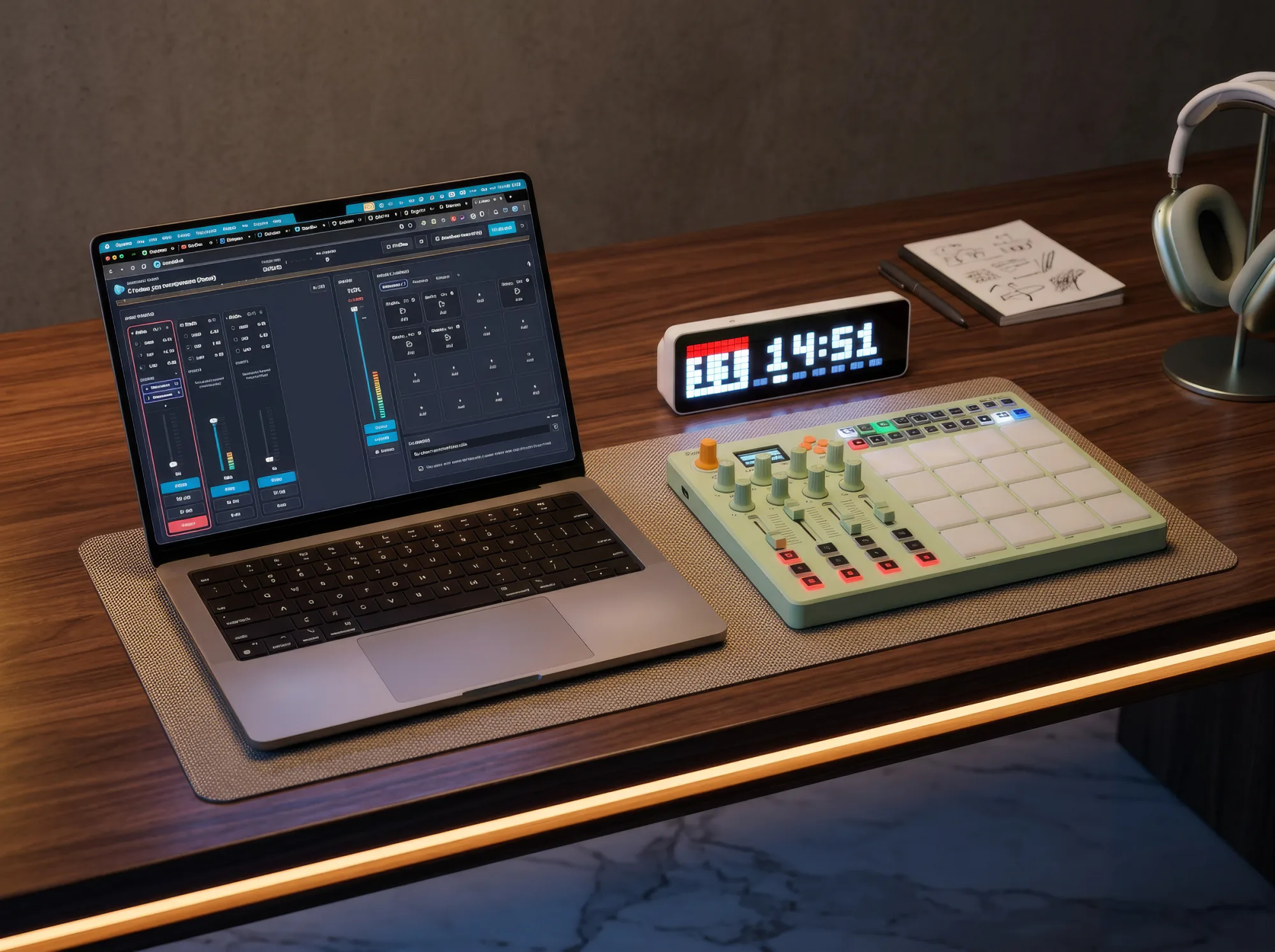
MIDI Controller & Live Radio: Tunio as an Internet Radio Platform
Professional radio always had its physical ritual: a hand on the fader, a finger on the jingle pad, an eye on the meters. You can't work a live show with a mouse — it demands something tactile. That used to mean a studio with a hardware console, a sound card, and someone who knew how to mix it all.
Now all it takes is a laptop, a browser, and a MIDI controller that costs next to nothing. Tunio's Broadcast Studio has learned to speak MIDI: pads fire jingles, faders ride channel levels, buttons put your mic on air — and the platform lights the controller back in time with the broadcast. Let's look at how it works, and why it turns Tunio from "background music for business" into a full radio platform — one where you create your own internet radio station, run 24/7 broadcasting, and go live.
New to the Broadcast Studio? Start with the overview, “Live broadcasting from your browser”. Here we focus on controlling it from hardware.
What the Broadcast Studio is
The Broadcast Studio is a mixing console that opens right inside your Tunio account — nothing to install. It has channels with EQ, a master section with a limiter, a grid of pads for jingles and stingers, guest call-in by link, and a Go Live button. Until you go on air, listeners hear Tunio's automated rotation — scheduled music, announcements, weather. Hit Go Live and your show plays over the stream; hit Stop and the stream returns to the music on its own.
What else the studio does
Controlling it from hardware sits on top of a studio that already has everything a live show needs:
- Smooth on and off air. Going live and stopping happen without clicks or abrupt cutoffs, and after Stop the stream returns to the automated rotation on its own.
- Auto-ducking. When a jingle or an ad roll fires, the music and background channels dip smoothly and come back the same way. Talk-over works separately: the bed ducks while you speak into the mic.
- A playlist that mixes. Tracks segue with a crossfade, and with beat sync on they line up in tempo, beat to beat.
- Broadcast recording. Every show can be recorded and taken away as a file.
- Guests on air. Invite by link and run the room (level, mute, drop a participant) — no messengers, no third-party services, with an echo-free return feed.
- Channel audio plugins. Mic and guest channels host inserts: low-cut, noise suppression, de-esser, compressor and more — so the voice stays clean.
Everything works with a mouse. But the moment a show gets live and fast, a mouse isn't enough: you can't duck the music with one hand, open your mic with the other, and hit a jingle pad all at once. That's where the controller comes in.
Connecting a controller: plug in and "learn"
Tunio uses Web MIDI — a technology built into the browser. Plug a USB-MIDI controller into your laptop, open the studio, and it's already available. No drivers, no separate app, no virtual audio cables.
Then you bind controls by "learning" them (MIDI Learn). You pick what you want to control in the studio and just touch the control on the hardware: hit a pad, move a fader, turn a knob. The studio remembers that exact control and works out what kind it is:
- pads (a press) — map to jingles and stingers;
- faders and knobs (a smooth sweep) — to channel and master levels;
- buttons — to Go Live, Mute, CUE, and start/stop the track;
- even a sequencer's transport buttons (Play/Stop) can drive the start and stop of your broadcast.
The studio tells a button from a fader on its own. A fraction of a second after you touch a control, it sees whether it "clicked" once or swept a range — and assigns it correctly: a button to an action, a fader to a level. You don't choose anything by hand.
A console shaped to your controller, not the other way around
Controllers come in every shape — 8 pads, 16, a 4×4 grid, rows laid out differently. So the pad grid in the studio adapts: settings let you set the total number of pads and how many per row, so the on-screen layout matches your hardware one-to-one. Press the top-left pad on the controller, and the top-left jingle fires on screen.
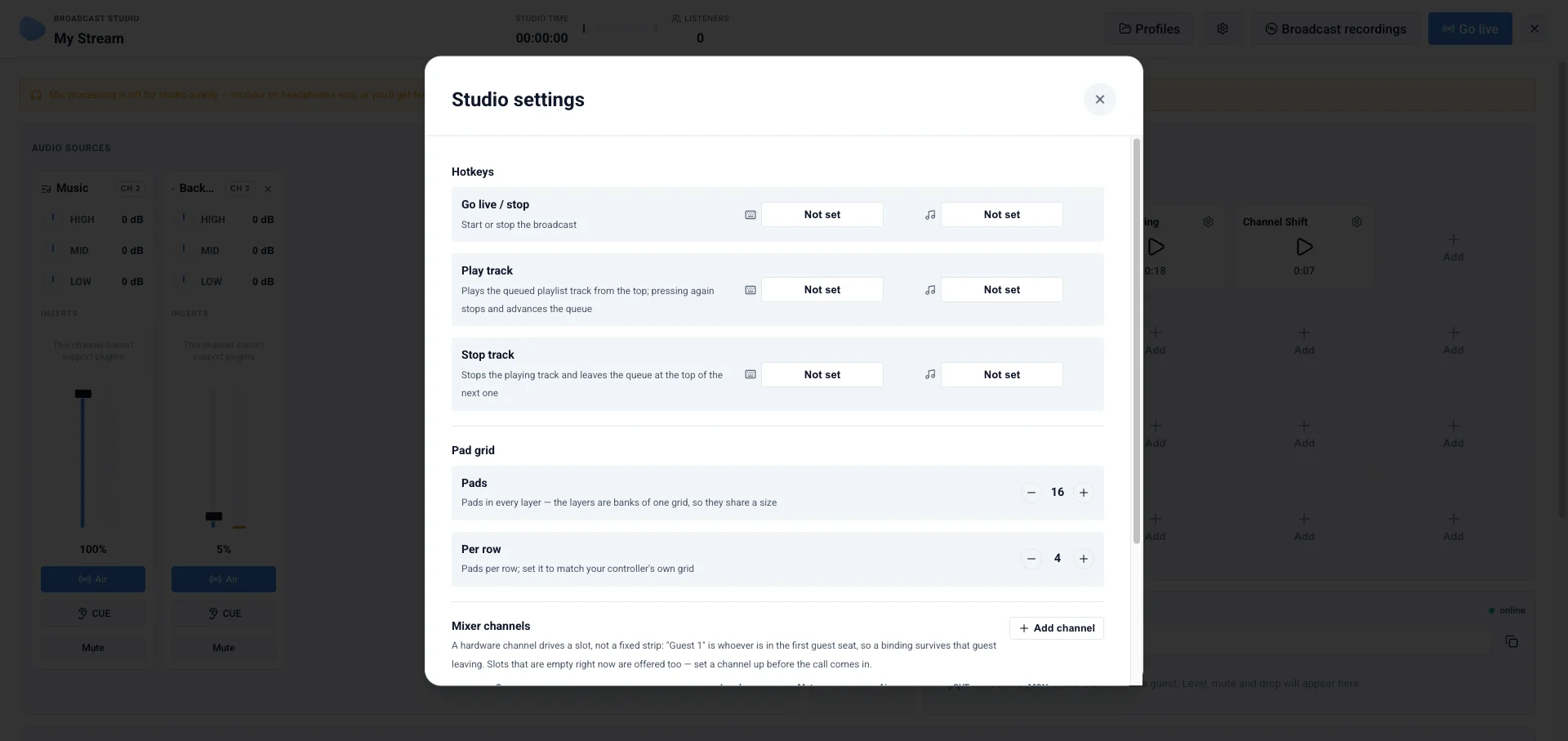
Mixer channels bind to the controller as a slot, not a fixed strip: if "Guest 1" is on a fader, that's whoever is in the first guest seat — the binding survives a guest leaving. And each channel's Air, Mute, CUE, and level can be spread across the controller's buttons independently.
The controller lights up with the broadcast. Tunio doesn't just listen to the controller — it answers back: when a channel is on air or muted, the studio lights the matching button on the controller itself. You read the state of the broadcast on the hardware without looking away from your guest or your notes.
Why this makes Tunio a radio platform
The classic radio platforms — radio.co, Zeno.FM and the like — pitch themselves as an "all-in-one platform to create your own internet radio station": a stream, automated playout (Auto-DJ), show scheduling, listener analytics. But the moment you reach live broadcasting, the picture breaks: the broadcast is usually assembled in OBS through an external encoder, and guests are brought in with third-party services. You can't plug a MIDI controller into the browser there — you need a separate studio app.
Tunio closes the whole internet-radio chain in one account:
- 24/7 broadcasting (a round-the-clock stream) with AI music — no royalty fees;
- automated playout: music rotation, jingles, announcements and scheduling on autopilot;
- listener analytics and relays of the stream to external platforms;
- live broadcasting from the browser (go live) with guest call-in by link — no messengers, no conference bridging;
- and hands-on control of the broadcast from a MIDI controller — like a real radio station.
So you don't get "stream hosting" — you get the whole internet radio station: automation when you're off air, and a real radio console when you're on.
What you need to try it
- A browser with Web MIDI — Chrome or Edge (Safari doesn't support it yet).
- Any USB-MIDI controller — an inexpensive pad controller or a MIDI keyboard with knobs and faders will do.
- The Pro plan or higher — that's where the Broadcast Studio, guest call-in and console profiles unlock.
Save your layout — channels, pads, controller bindings — as a console profile and bring it back with one click before your next show. The full step-by-step guide is in the Broadcast Studio documentation.